Web Analytics Overview
Measuring the Web
Web analytics is the collection, measurement, and analysis of website or app usage data. Be careful to not trivialize this as hit counting or visitors, web analytics data when done correctly, is not just a marketing tool — it is operational intelligence that can help developers find errors and performance issues, designers improve aesthetic acceptance and usability, and importantly owner to measure outcomes and insure web efforts maintain economic viability.
Analytics answers the questions you cannot answer just by looking at your own code. They address what happens when users meet the executing code. It could tell us:
- Where do users come from?
- What do real users actually do?
- Where do they struggle?
- What breaks?
- What's slow?
- And maybe even what is unused and needs to go
Analytics can answer these types of questions and more, but be careful not to just collect data and look for insights. We really need to determine our questions first and aim to prove/disprove our beliefs rather than hoping a magical insight emerges from the data.
Related: This page covers the how of data collection. See Behavioral Analytics for the product and marketing side — engagement metrics, conversions, attribution, A/B testing, and the ethics of behavioral data. See OpenTelemetry for system observability.
1. Why Web Analytics?
Web analytics helps answer questions like:
- How many people visit my site?
- Where do visitors come from?
- What pages are most popular?
- Where do users drop off in checkout flows?
- How fast does my site load for real users?
These questions serve three distinct purposes:
- Error tracking and elimination — Finding broken pages, failed requests, JavaScript exceptions, and resource load failures that users never report.
- User behavior monitoring — Understanding what users actually do: which features they use, which paths they take, where they abandon tasks.
- Usability and interest measurement — Determining whether the interface works, whether content resonates, and whether changes improve or degrade the experience.
These three purposes map directly to the three participant groups in any web application: developers care about errors, business stakeholders care about conversions and engagement, and users benefit from a better experience even though they never see the analytics data.
2. The Analytics Stack
A basic analytics pipeline has three parts:
- Collection — Receives data from client-side scripts (beacons, events) or ingests server logs. This is the entry point for all analytics data.
- Storage — A database optimized for time-series queries: how many page views last week? What was the error rate yesterday? Typical choices include PostgreSQL, ClickHouse, or cloud data warehouses.
- Reporting — Dashboards and visualizations that transform raw data into actionable insight. This is where numbers become decisions.
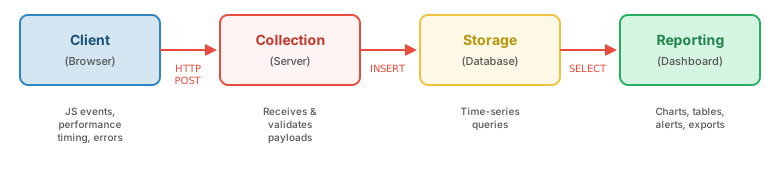
In this course, you build each part yourself. The collector receives HTTP POST requests containing analytics events, and we collect data via HTTP access logs. We will aggregate this data into the storage layer, so the reporting layer can be used to form queries on the data and present it visually.
3. Data Collection Methods
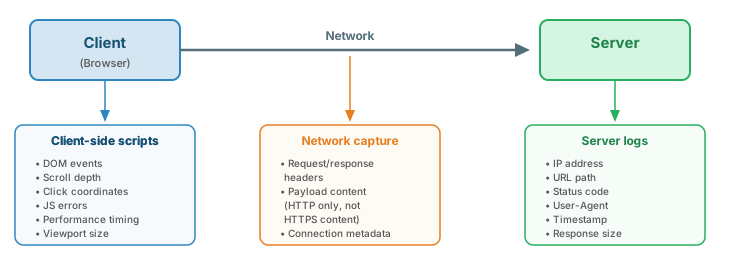
There are three fundamental approaches to collecting analytics data, each capturing data at a different point in the client-server communication:
- Server logs — The web server automatically records every request: IP address, URL, status code, User-Agent, timestamp. In theory, any HTTP packet, and that could include extra data provided using Client Hints. A motivating aspect of logging is that no client code changes are needed. While this is the oldest method, it is also the most reliable one, and complete analytics solutions leverage logs.
- Network capture (packet sniffing) — Intercepting traffic between client and server to inspect the full request/response. Requires network access but no server or client changes. Largely obsolete for content analysis since HTTPS, unless within a datacenter, where you could install a certificate on the device.
- Client-side scripts — JavaScript code running in the browser or other native code in a mobile application that captures events (clicks, scrolls, errors, timing) and sends them to a collector. This is the most flexible method and collects a wealth of information, but it requires code deployment and depends on JavaScript being enabled.
| Aspect | Server Logs | Network Capture | Client-Side Scripts |
|---|---|---|---|
| What it captures | HTTP requests received by server | All traffic on the wire | Any browser event or state |
| Requires code changes? | No — built into web servers | No — passive observation | Yes — must add JS to pages |
| Captures client events? | No — only sees requests | No — only sees network traffic | Yes — clicks, scrolls, errors |
| Works with HTTPS? | Yes — runs on the server | Metadata only — content encrypted | Yes — runs in the browser |
| Performance impact | Minimal — logging is routine | Variable — depends on volume | Variable — adds JS payload |
| Privacy concerns | Moderate — IP, paths | High — deep packet inspection | Very High — can capture anything |
| Example tools | Apache/Nginx logs, GoAccess, AWStats | Wireshark, tcpdump | Google Analytics, custom beacons |
Cross-references: Web Servers Overview covers server logging configuration; HTTP Overview covers the headers that appear in logs.
4. What Can Be Collected
Analytics data comes from four sources, each providing different information automatically or with code:
From HTTP Headers (automatic)
- IP address — geographic location, ISP, rough identity
- User-Agent — browser, OS, device type
- Referer — where the user came from (previous page or search engine)
- Accept-Language — user's language preferences
- Cookies — session identifiers, tracking IDs, preferences
- Other Headers — if logs are extended any header can be collected, including those set by script code or added because of Client Hints — see Section 5 (Enriching Server Logs) for details on log formats, Client Hints, and script-to-header techniques
From the URL (automatic)
- Path — which page or resource was requested
- Query parameters — search terms, filter state, pagination
- UTM codes — campaign tracking (
utm_source,utm_medium,utm_campaign)
From the Server (automatic)
- Timestamp — when the request arrived
- Status code — success, redirect, client error, server error
- Response size — bytes transferred
- Processing time — how long the server took to respond
From JavaScript (requires code)
- Viewport dimensions — actual visible area, not screen resolution
- Scroll depth — how far down the page users read
- Click coordinates and targets — what users click on
- Mouse movement — where attention and hesitation occur
- Performance timing API — DNS, TCP, TTFB, DOM load, paint times
- JavaScript errors — exceptions, stack traces, failed resource loads
- DOM state — form values, element visibility, dynamic content
- Custom events — add-to-cart, video play, tab switch, really anything you define.
Cross-references: URL Overview covers query parameters and UTM tracking codes; HTTP Overview covers request/response headers; State Management Performance covers cookies and session tracking.
5. Enriching Server Logs
Server access logs are the oldest and most reliable analytics data source — every request is recorded without any client-side code. But the default Common Log Format captures only 7 fields. With configuration changes and a few techniques, you can transform logs into a rich analytics dataset that rivals client-side collection for many use cases.
Log Formats — From Common to Custom
The Common Log Format (CLF) gives you IP, identity, user, timestamp, request line, status, and size — only 7 fields, with no browser info, no referrer, and no timing. The Combined format adds Referer and User-Agent, making it the de facto standard for analytics. But custom formats can capture any HTTP header, server variable, cookie, or timing metric.
| Log Format | Fields | Analytics Value |
|---|---|---|
| Common (CLF) | IP, identity, user, timestamp, request line, status, size | Basic hit counting only — no browser or referrer data |
| Combined | CLF + Referer + User-Agent | Traffic sources, browser/OS breakdown — the analytics minimum |
| Custom / Extended | Any header, cookie, variable, or timing metric | Rich analytics: response time, language, viewport, device hints |
Both Apache and Nginx support custom log formats that can capture any request header:
# Apache — LogFormat + CustomLog
LogFormat "%h %l %u %t \"%r\" %>s %b \"%{Referer}i\" \"%{User-Agent}i\" %D \"%{Accept-Language}i\" \"%{X-Viewport}i\"" enriched
CustomLog /var/log/apache2/access.log enriched

# %D = response time in microseconds
# %{HeaderName}i = any request header
# Nginx — log_format + access_log
log_format enriched '$remote_addr - $remote_user [$time_local] '
                    '"$request" $status $body_bytes_sent '
                    '"$http_referer" "$http_user_agent" '
                    '$request_time "$http_accept_language" "$http_x_viewport"';
access_log /var/log/nginx/access.log enriched;

# $request_time = response time in seconds
# $http_headername = any request header (lowercase, dashes become underscores)
The key insight: %{HeaderName}i (Apache) and $http_headername (Nginx) let you log any request header. This is what makes the techniques below possible.
Cross-reference: Web Servers Overview covers basic log configuration.
Client Hints — Structured Device Information
User-Agent strings are chaotic, bloated, and increasingly frozen by browsers. Client Hints are the modern replacement: structured, opt-in headers the server requests. The server sends an Accept-CH header (or <meta http-equiv="Accept-CH">) listing desired hints — the browser then includes them on subsequent requests, and the server logs them automatically.
| Client Hint | What It Provides | Example Value |
|---|---|---|
Sec-CH-UA | Browser brand and version | "Chromium";v="124", "Chrome";v="124" |
Sec-CH-UA-Mobile | Mobile device? | ?0 (no) or ?1 (yes) |
Sec-CH-UA-Platform | Operating system | "macOS" |
Sec-CH-UA-Platform-Version | OS version | "14.5" |
Sec-CH-UA-Full-Version-List | Detailed browser versions | Full version strings |
Sec-CH-UA-Model | Device model | "Pixel 8" |
Sec-CH-UA-Arch | CPU architecture | "arm" |
Sec-CH-Viewport-Width | Viewport width in CSS pixels | 1440 |
Sec-CH-DPR | Device pixel ratio | 2.0 |
ECT | Effective connection type | 4g, 3g, 2g, slow-2g |
Downlink | Estimated bandwidth (Mbps) | 10.0 |
RTT | Estimated round-trip time (ms) | 50 |
Client Hints "upscale" your logs: structured device info, network quality, and viewport data — all from headers, logged automatically. However, they are Chromium-only (Chrome, Edge, Opera). Firefox and Safari don't support them, so User-Agent remains necessary as a fallback.
Script-to-Header — Bridging Client and Server Logs
JavaScript knows viewport, scroll depth, errors, and color scheme. Server logs know timing, status codes, and upstream latency. Merging both is ideal. The technique: JavaScript sets a cookie with client-side data — the browser sends it on subsequent requests — the server log format captures it.
// Set client-side data as a cookie for server log capture
document.cookie = '_viewport=' + window.innerWidth + 'x' + window.innerHeight
    + ';path=/;SameSite=Lax;max-age=1800';

// Or set a custom header on fetch requests
fetch('/api/data', {
    headers: { 'X-Viewport': window.innerWidth + 'x' + window.innerHeight }
});
The server captures the cookie via %{_viewport}C (Apache) or $cookie__viewport (Nginx). The advantage: client data appears in server logs without a separate beacon endpoint. The limitation: cookie-based data is one request behind (the cookie is set on one request and sent on the next), and cookies add overhead to every request. This technique works best for data that changes infrequently: viewport, timezone, color scheme, device pixel ratio.
Log Forwarding — Third-Party Analysis of First-Party Data
A hybrid model: collect logs first-party, then forward them to a third party for analysis. This gives you the privacy benefits of first-party collection with the analysis power of third-party tools.

Common log shippers include rsyslog/syslog-ng (traditional), Filebeat/Fluentd/Fluent Bit (modern), cloud agents, or even a simple pipe-to-script. The privacy advantage is significant: the browser never talks to the third party. You decide what fields to forward and what to redact.
This approach blurs the first-party / third-party line — collection is first-party, analysis may be third-party. Cross-reference: the First-Party vs Third-Party section below discusses this middle ground.
6. First-Party vs. Third-Party Analytics
The distinction between first-party and third-party analytics is about who collects the data and where it goes:
- First-party: You collect data on your own infrastructure. The analytics beacon sends data to your domain. Cookies are scoped to your domain. You own and control the data.
- Third-party: A vendor (ex: Google Analytics) collects data on their infrastructure. The beacon sends data to their domain. Cookies may be third-party cookies. They store your data alongside data from all their other customers.
The technical difference is straightforward: where does the analytical data you collect go? If sendData() goes to analytics.yoursite.com, it is first-party. If it goes to google-analytics.com, it is third-party.
| Aspect | First-Party | Third-Party |
|---|---|---|
| Data ownership | You own it completely | Vendor stores and may use it |
| Cookie scope | Your domain only | Vendor's domain (cross-site capable) |
| Privacy compliance | Simpler — you control data flows | Complex — data leaves your control |
| Setup effort | High — build and maintain infrastructure | Low — add a script tag |
| Cross-site tracking | Not possible (your domain only) | Possible (vendor sees all their clients' sites) |
| Ad blocker impact | Usually unblocked (same domain) | Often blocked (known tracking domains) |
| Cost | Infrastructure and development time | Often perceptually "free" (you pay with data) |
Cross-references: State Management Performance covers first-party vs third-party cookies; Foundations Overview covers trust boundaries and data collection zones.
7. Browser Fingerprinting & User Identification
A fundamental analytics challenge is identifying unique users across visits. Cookies are the traditional mechanism — set a unique ID in a cookie, and you recognize the user when they return. But cookies can be cleared, blocked by browsers, rejected by privacy-conscious users, or simply not persist in incognito mode. Fingerprinting is the alternative.
What Is Browser Fingerprinting?
Browser fingerprinting combines multiple browser and device attributes to create a quasi-unique identifier. No single attribute is unique — millions of people use Chrome on Windows — but the combination of attributes is surprisingly distinctive. It works without cookies, without login, and without any stored state on the client.
| Attribute | Source | How It Helps |
|---|---|---|
| User-Agent string | HTTP header | Browser + OS + version |
| Screen resolution | screen.width/height |
Device type |
| Installed fonts | Canvas/JS enumeration | Highly variable across systems |
| Canvas rendering | Canvas API | GPU/driver-specific pixel differences |
| WebGL renderer | WebGL API | GPU hardware identifier |
| Timezone | Intl.DateTimeFormat |
Geographic signal |
| Language | navigator.language |
Locale preference |
| Platform | navigator.platform |
OS identifier |
| Hardware concurrency | navigator.hardwareConcurrency |
CPU core count |
| Audio fingerprint | AudioContext API | Audio stack differences |
| Installed plugins | navigator.plugins (legacy) |
Increasingly limited |
How Fingerprint Hashing Works
The process is conceptually simple: collect attributes, concatenate them into a string, and hash the result to produce a fingerprint ID:
// Conceptual fingerprint generation
async function generateFingerprint() {
    const components = [
        navigator.userAgent,
        screen.width + 'x' + screen.height,
        navigator.language,
        navigator.platform,
        navigator.hardwareConcurrency,
        Intl.DateTimeFormat().resolvedOptions().timeZone,
        getCanvasFingerprint(),   // render text to canvas, extract pixel data
        getWebGLRenderer()        // query GPU info via WebGL
    ];

    const raw = components.join('|');
    const hash = await crypto.subtle.digest('SHA-256',
        new TextEncoder().encode(raw));
    return Array.from(new Uint8Array(hash))
        .map(b => b.toString(16).padStart(2, '0')).join('');
}
// Result: something like "a3f2b8c1e9d4..." — fairly stable across visits
The resulting hash is fairly stable across visits from the same browser on the same device. It changes when the user updates their browser, installs new fonts, or changes OS settings — but it persists through cookie clearing and incognito mode.
Effectiveness and Limitations
Studies have shown that canvas rendering + WebGL + fonts can uniquely identify over 90% of desktop browsers. However, fingerprinting is not perfect:
- Mobile devices are less unique — Fewer customizations, similar hardware across millions of iPhone users
- Browser updates change the fingerprint — A Chrome update changes the User-Agent string, shifting the hash
- Incognito mode does NOT defeat fingerprinting — The hardware, fonts, and GPU are still the same
- It is probabilistic, not exact — Two users with identical hardware, OS, and settings will share a fingerprint
Cross-reference: State Management Performance covers the cookie-based approach to user identification — fingerprinting is what works when cookies don't.
Fingerprinting vs. Cookies
| Aspect | Cookies | Fingerprinting |
|---|---|---|
| User can clear | Yes | No |
| Blocked by ad blockers | Sometimes | Harder to block |
| Stability | Until cleared | Until browser/OS updates |
| Accuracy | Exact (unique ID) | Probabilistic (~90%+) |
| Privacy regulation | Covered by GDPR | Also covered by GDPR |
| Cross-device | No (unless synced) | No (different hardware) |
Privacy and Ethics
GDPR considers fingerprinting personal data — consent is required just as it is for cookies. But unlike cookies, users cannot easily see, inspect, or clear a fingerprint. This asymmetry is ethically problematic. Browsers are actively fighting fingerprinting: Firefox offers "fingerprinting protection" that standardizes canvas output and hides hardware details, Safari's Intelligent Tracking Prevention (ITP) limits fingerprintable APIs, and Chrome has signaled similar intentions.
8. Collection Philosophy: Broad vs Targeted
There are two opposing philosophies for what data to collect:
- Broad collection ("collect everything") — Capture every event, every click, every timing metric. Store it all. Figure out what matters later. The advantage is discovering things you did not know to look for.
- Targeted collection ("collect specific things") — Define specific questions first. Instrument only what answers those questions. The advantage is lower cost, lower risk, and clearer compliance.
| Aspect | Broad Collection | Targeted Collection |
|---|---|---|
| Data volume | Very high | Low to moderate |
| Storage cost | High and growing | Predictable and manageable |
| Discovering unknowns | Strong — data is already there | Weak — must add new instrumentation |
| Privacy risk | High — you may collect PII without realizing | Low — you know exactly what you have |
| GDPR alignment | Poor — violates data minimization | Good — purpose-limited collection |
| Setup time | Fast initially, hard to query later | Slower initially, easy to query later |
In practice, most teams start broad and narrow over time as they learn what matters. The key constraint is privacy law.
9. Privacy & Consent
Every analytics technique covered so far — server logs, client-side scripts, fingerprinting, session replay — collects data about real people. Privacy law exists precisely because analytics capabilities outpaced user expectations. If you build an analytics system (as you do in this course), you need to understand the legal landscape.
GDPR — The Global Standard
The General Data Protection Regulation (EU, 2018) applies to anyone processing data of EU residents, regardless of where the company is located. Six core principles are directly relevant to analytics:
- Lawfulness — You need a legal basis for processing: consent or legitimate interest.
- Purpose limitation — Collect for a stated purpose; don't repurpose data later.
- Data minimization — Collect only what is necessary for that purpose.
- Accuracy — Keep data correct and up to date.
- Storage limitation — Don't keep data longer than needed.
- Integrity & confidentiality — Protect the data you hold.
Key individual rights include: the right to access (see what data you hold), the right to erasure ("right to be forgotten"), and the right to data portability. Enforcement is serious: fines up to 4% of global annual revenue or €20M, whichever is greater.
ePrivacy Directive & Cookie Consent
The ePrivacy Directive is separate from GDPR and specifically governs electronic communications, including cookies. It is the origin of cookie banners and consent pop-ups. The core rule: you must obtain informed consent before setting non-essential cookies. Analytics cookies are non-essential. Only "strictly necessary" cookies (session management, security tokens) are exempt.
Beyond Europe
Privacy regulation is expanding globally, not contracting:
- CCPA/CPRA (California) — An opt-out model rather than opt-in. Users can say "Do Not Sell My Personal Information." Legally recognizes Global Privacy Control.
- US state laws — Virginia (VCDPA), Colorado, Connecticut, and others have enacted similar frameworks, creating a patchwork of requirements.
- LGPD (Brazil) and PIPL (China) — Similar comprehensive frameworks. The trend is clear: every major market is adopting data protection regulation.
Consent Mechanisms
- Cookie banners / CMPs — Consent Management Platforms present choices before analytics loads. Legally required in the EU for non-essential cookies.
- Do Not Track (DNT) — A W3C header that browsers sent; sites almost universally ignored it. Effectively dead as a standard.
- Global Privacy Control (GPC) — The successor to DNT. A browser signal legally recognized under CCPA — sites must honor it in California.
- Privacy-preserving analytics — Tools like Plausible, Fathom, and Umami are designed to avoid needing consent entirely by not using cookies or collecting PII. They demonstrate that useful analytics doesn't require tracking individual users.
What This Means for Your Analytics
| What You're Doing | Consent Required? | Why |
|---|---|---|
| Server access logs (IP, path, UA) | Usually not | Standard operational logging qualifies as legitimate interest |
| First-party analytics cookies | Yes (ePrivacy) | Non-essential cookie — requires informed consent |
| Fingerprinting | Yes (GDPR) | Creates personal data through processing |
| Session replay | Yes (GDPR) | Records user behavior and may capture PII |
| Third-party analytics (e.g. GA) | Yes (GDPR + ePrivacy) | Data leaves your control; third-party cookies |
| Aggregate, cookie-free metrics only | Often not | No personal data processed — no individual tracking |
10. Error Tracking and Elimination
The most immediate value of analytics for developers is finding errors that users never report. Most users who encounter a broken page simply leave — they do not file a bug report. Interestingly, the marketing of all things means we adopt a specialized term for this use of analytics to see how software is behaving: observability.
Server-Side Error Detection
Server access logs contain HTTP status codes for every request. Filter for 4xx (client errors: broken links, missing resources) and 5xx (server errors: crashes, timeouts). This requires no code changes — just log analysis.
Client-Side Error Detection
JavaScript errors, failed resource loads, and unhandled promise rejections are invisible to the server unless you explicitly capture and report them:
// Capture JavaScript errors
window.addEventListener('error', function(event) {
    const errorData = {
        type: 'js_error',
        message: event.message,
        source: event.filename,
        line: event.lineno,
        column: event.colno,
        timestamp: Date.now(),
        url: location.href,
        userAgent: navigator.userAgent
    };

    // sendBeacon guarantees delivery even during page unload
    navigator.sendBeacon('/collect', JSON.stringify(errorData));
});

// Capture unhandled promise rejections
window.addEventListener('unhandledrejection', function(event) {
    navigator.sendBeacon('/collect', JSON.stringify({
        type: 'promise_rejection',
        reason: String(event.reason),
        timestamp: Date.now(),
        url: location.href
    }));
});
Cross-references: HTTP Overview covers status codes; Web Servers Overview covers access logs and error logs.
navigator.sendBeacon() was designed for analytics — it guarantees delivery even when the page is unloading. Unlike XMLHttpRequest or fetch(), a beacon will not be cancelled when the user navigates away or closes the tab. This makes it essential for capturing exit events and errors. However, it is not always appropriate, and sometimes you'll see very old-style approaches, such as JavaScript enhanced `11. Performance Analytics & Web Vitals
A page that works perfectly but takes 8 seconds to load is a failed page. Performance is a core analytics concern — it affects user experience, conversion rates, SEO rankings, and revenue. Google uses performance metrics as ranking signals. Measuring real user performance is a direct application of analytics.
Core Web Vitals
Core Web Vitals are Google's framework for measuring user experience through three metrics:
| Metric | What It Measures | Good Threshold | API |
|---|---|---|---|
| LCP (Largest Contentful Paint) | Loading — when the main content is visible | ≤ 2.5s | PerformanceObserver |
| INP (Interaction to Next Paint) | Responsiveness — delay from user input to visual update | ≤ 200ms | PerformanceObserver |
| CLS (Cumulative Layout Shift) | Visual stability — unexpected layout movement | ≤ 0.1 | PerformanceObserver |
These are measured on real users, not lab tests. That is the analytics connection — you need to collect these metrics from actual visitor sessions. Google uses Core Web Vitals as search ranking signals, meaning poor performance literally reduces your search visibility.
RUM vs. Synthetic Monitoring
| Aspect | Real User Monitoring (RUM) | Synthetic Monitoring |
|---|---|---|
| Data source | Actual user sessions | Scripted bots from controlled locations |
| What it tells you | Real-world experience across devices/networks | Baseline performance under controlled conditions |
| Variability | High — real networks, real devices | Low — consistent test environment |
| Coverage | Only pages users visit | Any page you configure |
| Setup | Analytics script on every page | Configure test scenarios |
| Examples | web-vitals JS library, custom beacons | Lighthouse, WebPageTest, Pingdom |
RUM is analytics. Synthetic is testing. Both are necessary but serve different purposes. For the course project, you are building RUM — collecting real performance data from real visitors.
The Performance APIs
Key browser APIs for collecting performance data:
- Navigation Timing API — DNS lookup, TCP connect, TLS handshake, TTFB, DOM load, full page load
- Resource Timing API — Load time of every resource (images, scripts, CSS)
- Performance Observer API — Subscribe to performance entries as they occur (the modern approach)
- Long Tasks API — Detect tasks that block the main thread for >50ms
// Using the web-vitals library (Google's official library)
import {onLCP, onINP, onCLS} from 'web-vitals';

function sendMetric(metric) {
    navigator.sendBeacon('/collect', JSON.stringify({
        type: 'web_vital',
        name: metric.name,      // 'LCP', 'INP', or 'CLS'
        value: metric.value,
        rating: metric.rating,  // 'good', 'needs-improvement', or 'poor'
        url: location.href,
        timestamp: Date.now()
    }));
}

onLCP(sendMetric);
onINP(sendMetric);
onCLS(sendMetric);
What Performance Data Tells You
- Slow pages correlate with higher bounce rates and lower conversions
- Performance varies dramatically by device and network — aggregate numbers hide the pain
- Segment by device type, connection speed (ECT from Client Hints), geography
- The 75th percentile (p75) is the standard reporting threshold for Web Vitals, not the average — because averages hide tail latency
Cross-reference: The Enriching Server Logs section (Section 5) covers how Client Hints like ECT, Downlink, and RTT can provide network quality data without JavaScript.
12. User Behavior and Usability
Simple error tracking is just the start; analytics can reveal how users actually interact with your site. The key behavioral metrics are:
- Page views — Which pages are visited and how often
- Sessions — Groups of page views by the same user within a time window
- Bounce rate — Percentage of visitors who leave after viewing only one page
- Time on page — How long users spend before navigating away
- Scroll depth — How far down the page users actually read
- Click patterns — What elements users interact with (and which they ignore)
- Conversion rate — Percentage of visitors who complete a desired action
These metrics form a funnel — each stage filters out users who do not proceed:
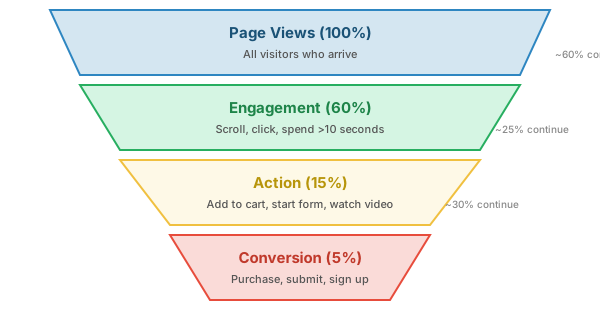
Understanding usability through analytics means looking for signals of confusion: high bounce rates on landing pages, form abandonment halfway through especially when hitting a sticky field, features with zero clicks despite being prominently placed, or users repeatedly hitting the back button, excessive clicks on an unclickable object dubbed a rage click, and many more signals can point us towards user problems. However, we need to be careful as sometimes we can infer the wrong thing from a behavior. For example, many supposed dead clicks on a page could indicate anchor or scrolling touches, and users may also be highlighting content for copy-paste. A full session replay can capture nuance, but aggregating all details is hard, and watching replays can be time-consuming.
13. Session Replay
Session replay takes analytics from numbers to narrative. Instead of knowing that 40% of users abandon a form, you can watch exactly what confused them.
How It Works
Session replay does not record video of the user's screen. Instead, it captures a stream of DOM mutations, mouse movements, scroll positions, clicks, and input events. On playback, it reconstructs the DOM state at each point in time, creating a faithful recreation of what the user saw and did.
The data format is a JSON stream of events, typically 100–500KB per session depending on page complexity and session length. This is far smaller than screen capture video would be. Though some folks will make movies from this data anyway.
| Aspect | Detail |
|---|---|
| How it works | Captures DOM mutations, mouse movement, scroll, clicks, inputs as JSON events |
| Data format | JSON event stream, ~100–500KB per session |
| Sensitive data | Must mask passwords, PII, payment fields — best tools mask by default |
| Privacy | Requires explicit user consent under GDPR; must be disclosed in privacy policy |
| Value | Qualitative insight — see exactly what confused users experienced |
| Example tools | rrweb (open source), FullStory, Hotjar, LogRocket |
The qualitative leap session replay provides is significant: instead of inferring user intent from aggregate numbers, you see exactly what happened. A user hovering over the wrong button, scrolling past the CTA, or rage-clicking a non-interactive element tells a story that no metric can easily capture. Usability replay capture tools can even be used to capture video of a user to correlate facial tells and even user verbalizations (yes this might include cursing) to provide observational insights beyond the click stream. This approach is not realistic outside the lab, but the few times I have seen it used, it produced more interesting results than just replay followed by user interviews.
14. Observability and OpenTelemetry
Web analytics focuses on user behavior. Observability is the parallel discipline focused on system behavior — understanding what is happening inside your servers, databases, and services from their external outputs.
The Three Pillars
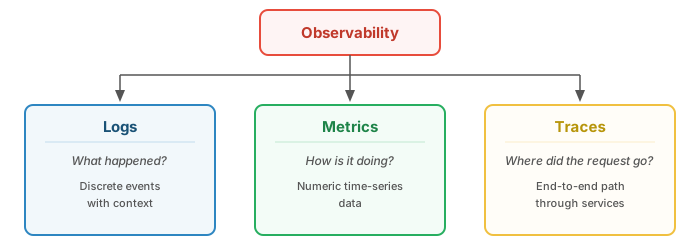
- Logs — Discrete events with context: "User 33 requested /api/items at 14:03:07 and got a 500 error because the database connection pool was exhausted." Logs answer what happened.
- Metrics — Numeric time-series data: request rate, error rate, response time percentiles, CPU utilization. Metrics answer how is the system doing.
- Traces — The end-to-end path of a single request through multiple services: browser → load balancer → web server → application → database → cache. Traces answer where did the request go and where did it slow down.
Analytics is observability for user behavior. Observability is analytics for software and system behavior. The two disciplines share tools, techniques, and infrastructure. A slow page load might be a user experience problem (analytics) caused by a slow query that may be caused by code or database (observability).
OpenTelemetry (OTel)
OpenTelemetry is a vendor-neutral open standard for telemetry data — traces, metrics, and logs. It provides APIs and SDKs for most languages, so you can instrument your code once and send the data to any backend: Jaeger, Prometheus, Grafana, Datadog, or your own storage.
The value of a standard is interoperability. Without OTel, switching from one monitoring vendor to another means re-instrumenting your entire codebase. With OTel, you change a configuration file.
Cross-reference: Web Servers Overview covers server logging and monitoring.
A common suggestion I make is for developers to prefer adopting a protocol or technical standard rather than buying into the platform. Platforms can change--sometimes for the worse, but protocols persist. To follow this, think about Git over Github, HTTP, HTML, CSS, and JavaScript over some particular framework. oTel over a particular analytical system.
15. Bot Traffic
Not all HTTP requests come from humans. A significant percentage of web traffic is automated — bots, crawlers, scrapers, and scripts. For analytics, this is a fundamental data quality problem: if you can't distinguish humans from bots, your metrics are meaningless.
Types of Bots
| Bot Type | Purpose | Example | Analytics Impact |
|---|---|---|---|
| Search engine crawlers | Index content for search | Googlebot, Bingbot | Inflate page views |
| SEO/monitoring bots | Check uptime, rankings, links | Ahrefs, Screaming Frog | Inflate page views |
| Social media bots | Generate previews/cards | Twitterbot, facebookexternalhit | Inflate page views, distort referrers |
| RSS/feed readers | Pull content updates | Feedly, Inoreader | Inflate page views |
| AI training crawlers | Scrape content for LLM training | GPTBot, ClaudeBot, Bytespider | High volume, distort all metrics |
| Scraper bots | Extract data, prices, content | Custom scripts | Inflate views, may stress server |
| Spam bots | Submit forms, post comments | Various | Corrupt form/conversion data |
| DDoS / attack bots | Overwhelm server | Botnets | Massive metric distortion |
| Click fraud bots | Fake ad clicks | Botnets | Inflate click/conversion metrics |
Scale of the Problem
Industry estimates put automated traffic at 30–50% of all web requests. For a new site with little organic traffic, the bot percentage can be much higher — sometimes the majority of your "visitors" are bots. Students building course projects will see this firsthand: your analytics data will contain bot visits, and you need to account for them.
Good Bots vs. Bad Bots
- Good bots: Search crawlers (you want Google to index you), uptime monitors, feed readers. They typically identify themselves via User-Agent and respect
robots.txt. - Bad bots: Scrapers, spammers, attack bots, click fraud. They disguise themselves, ignore
robots.txt, and consume resources without providing value. - Gray area: AI training crawlers — beneficial for visibility, or content theft? This is an active debate. Many sites now block GPTBot and similar crawlers via
robots.txt.
Bot Detection Methods
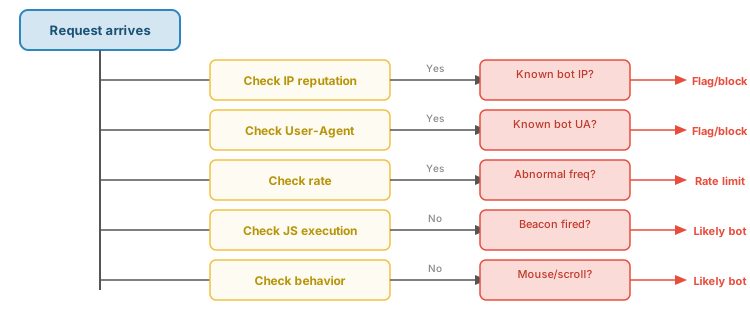
- User-Agent filtering — Most good bots identify themselves ("Googlebot", "Bingbot"). But User-Agent is trivially spoofable — bad bots often claim to be Chrome.
- robots.txt — A convention, not enforcement. Good bots respect it; bad bots ignore it. Not a detection method per se, but a filtering signal.
- Rate limiting — Humans don't request 100 pages per second. Abnormal request rates signal automation.
- Behavioral analysis — Bots don't scroll, don't move the mouse, don't hesitate before clicking. Client-side analytics can detect the absence of human behavior patterns.
- JavaScript execution — Many simple bots don't execute JavaScript. If your client-side beacon never fires but the server log shows a request, it's likely a bot.
- CAPTCHAs — Force proof of humanity. Effective but degrades UX. Use sparingly.
- IP reputation lists — Known bot networks and data center IPs. Services like Project Honeypot maintain lists.
- Honeypot fields — Hidden form fields that humans never fill out but bots do.
Impact on Analytics
If you don't filter bots, your analytics data is compromised in multiple ways:
- Page view counts are inflated — bots hit pages humans never visit
- Bounce rate is distorted — bots hit one page and leave
- Geographic data is skewed — bots run from data centers, not homes
- Time-on-page is wrong — bots don't "spend time" on pages
- Conversion funnels break — bots inflate the top of the funnel but never convert
For the course project: you must consider bot traffic when interpreting your analytics data. If your "busiest page" has hundreds of views but zero scroll events, those are not real users.
16. Data Quality Challenges
No analytics system gives you perfectly accurate data. Every collection method has blind spots, and multiple factors corrupt or reduce the data you receive:
| Threat | Impact | Mitigation |
|---|---|---|
| Bots and crawlers | Inflate page views, distort behavior metrics | Filter by User-Agent, use CAPTCHAs, analyze behavior patterns — see Section 15 for detailed bot detection strategies |
| Ad blockers | Block third-party analytics scripts entirely | Use first-party collection (same domain), server-side logging |
| Cookie clearing | Breaks session continuity — returning users appear as new | Accept approximation; use server-side session tracking |
| Browser caching | Cached pages generate no server request | Client-side scripts still fire; combine methods |
| CDN caching | CDN-served pages never reach your server logs | CDN analytics APIs; client-side collection |
| Device switching | Same user on phone and laptop appears as two users | Login-based identity; accept approximation |
| VPN / Proxy | IP-based geolocation becomes inaccurate | Use Accept-Language, timezone from JS for location hints |
| JavaScript disabled | Client-side analytics fails completely | Server logs as fallback; <noscript> pixel tracking |
| Incognito / private mode | No persistent cookies; every visit looks new | Accept approximation; focus on session-level data |
The fundamental challenge is the client-server gap: the JavaScript analytics code may never load (blocked, disabled, slow connection), so client-side analytics always undercounts compared to server logs. But server logs miss cached pages. Neither method captures everything.
State management directly affects data quality: if cookies are cleared, sessions break. If incognito mode is used, there is no persistence between visits. If third-party cookies are blocked (as they increasingly are), cross-domain tracking fails.
Cross-references: State Management Performance covers cookies and sessions; Foundations Overview covers the client-server model and trust boundaries.
17. Summary
| Concept | Key Takeaway |
|---|---|
| Why analytics | Find errors users never report, understand behavior, measure what works |
| Analytics stack | Collector → Storage → Reporting — you build all three in this course |
| Collection methods | Server logs (automatic), network capture (obsolete for HTTPS), client-side scripts (flexible) |
| What to collect | Headers and URLs automatically; JS adds clicks, scrolls, errors, timing |
| Enriching server logs | Extend log formats with custom headers, Client Hints, and script-set cookies to upscale logs from basic hit counts to rich analytics data |
| 1st vs 3rd party | First-party = you own the data; third-party = vendor owns it and builds cross-site profiles |
| Browser fingerprinting | Combines browser/device attributes to identify users without cookies — effective but ethically fraught and regulated by GDPR |
| Broad vs targeted | Collect what you need, not what you might need — GDPR requires purpose |
| Privacy & consent | GDPR, ePrivacy, and CCPA govern analytics collection — consent is required for cookies and fingerprinting; privacy-preserving tools avoid the problem entirely |
| Error tracking | Catch silent failures with window.onerror and sendBeacon() |
| Performance / Web Vitals | LCP, INP, CLS measure real user experience. Collect via Performance Observer API and sendBeacon. Google uses these as ranking signals. |
| User behavior | Funnel analysis reveals where users drop off; absence of action is data |
| Session replay | DOM-reconstruction replay, not video — powerful but privacy-sensitive |
| Observability | Logs + Metrics + Traces; OpenTelemetry is the vendor-neutral standard |
| Bot traffic | 30–50% of web traffic is automated — filter bots or your metrics are meaningless; compare server logs to client-side beacons as a first-pass filter |
| Data quality | Every method has blind spots — combine methods and accept approximation |